
Tuffpuff Casino App – Browser and PWA Access Guide
Mobile casino access should be quick, clean, and safe. The Tuffpuff Casino App experience works through official browser access and PWA-style setup, so you can play games, check bonuses, manage payments, and use account tools from your phone.
When you Download Tuffpuff, you are saving official mobile access to your device, not installing a random APK file. The Tuffpuff App route keeps things practical: open the platform, save the shortcut, log in, and play through a secure mobile connection.
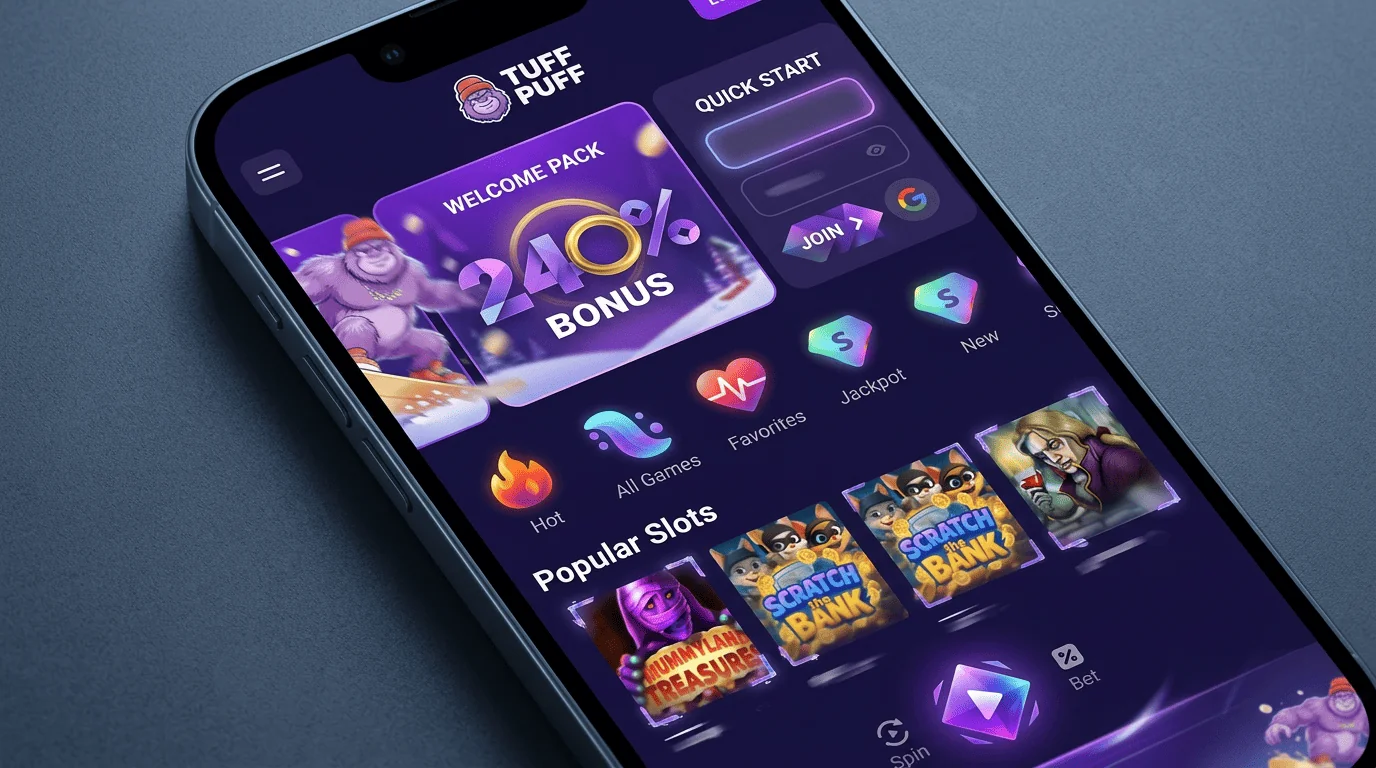
Why Browser-Based Mobile Access Works
Browser-based access is useful because it removes the usual install friction. You do not need to search app stores, trust unknown files, or wait for manual updates before opening your account.
It also keeps your casino access flexible. You can use the same profile from mobile, tablet, or desktop without creating a second account.
No Store Download Required
The Tuffpuff Casino App setup does not need a native store download for this route. Open the official site in your browser, log in or register, and save the platform to your home screen if your device supports it.
This is the safest way to Download Tuffpuff access. Avoid third-party APK pages, copied app links, or “exclusive installer” buttons that are not part of the official platform.
| Access option | What it means | Best use |
| Mobile browser | Direct official site access | First visit |
| Home shortcut | Saved launcher icon | Faster return |
| Tablet browser | Larger screen access | Live games |
| Desktop access | Full account review | Documents and settings |
| Private device | Safer account control | Payments and login |
A no-store route also means fewer risky files. That is a win for both convenience and account safety.
Fast Access from Any Device
Browser access lets you open the platform from supported phones and tablets. The Tuffpuff App experience stays connected to your account, so your profile, balance, rewards, and messages remain in one place.
You can switch devices when needed. For example, you might play slots on mobile, then use desktop later for document uploads or detailed account checks.
Fast access works best when you:
- Use the official site only.
- Keep your browser updated.
- Save the correct page as a shortcut.
- Use one player account.
- Avoid shared devices.
- Keep your screen locked.
Quick access is useful, but only when it stays secure. Fast should not mean careless.
Automatic Platform Updates
Browser-based access helps the platform load current features automatically. Instead of updating an app manually, you open the site and use the latest available mobile version.
This makes the Tuffpuff Casino App route easier for regular players. You can return to games, bonuses, payments, and account tools without checking for store updates first.
Automatic access can help with:
- Updated lobby layout.
- Current promotion pages.
- Active cashier options.
- New account messages.
- Fresh support routes.
- Improved mobile display.
Still, your browser matters. Keep Safari, Chrome, or your chosen browser updated so the platform can run properly.
Progressive Web App Experience
A PWA-style setup gives browser access a more app-like feel. You open the official site, save it to your home screen, then launch it from an icon.
The Tuffpuff Mobile App setup is useful for players who want faster entry without downloading unknown software. It keeps access simple while staying tied to the official platform.
Home Screen Shortcut
To create a shortcut, open the official platform in your mobile browser and choose the home-screen option. On iOS, this usually starts from Safari’s share menu; on Android, it often starts from Chrome’s menu.
This practical Download Tuffpuff route gives you one-tap access. It should reopen the same official platform instead of sending you through random app pages.
| Device type | Shortcut route | Player tip |
| iPhone | Safari share menu | Add to Home Screen |
| iPad | Safari share menu | Test after saving |
| Android phone | Chrome menu | Use official page |
| Android tablet | Chrome menu | Keep browser updated |
| Other devices | Browser tools | Check compatibility |
After saving the shortcut, open it once to test. If it does not load the official platform, delete it and create a fresh one.
Full-Screen Mobile View
A PWA-style shortcut can make the mobile platform feel cleaner by reducing browser clutter. You get faster access to the lobby, account area, bonus page, cashier, and support tools.
The Tuffpuff Casino Mobile App route works best when the page adapts well to your screen. Rotate your device or use a tablet if you need more room for live games or detailed terms.
Full-screen access can help with:
- Cleaner lobby browsing.
- Faster account checks.
- Easier bonus reading.
- Better cashier navigation.
- Smoother return visits.
- More focused gameplay.
Small screens are convenient, but bonus terms still need attention. Zoom in or switch devices if the text feels too tiny.
App-Like Navigation
The PWA-style route gives you app-like navigation while staying browser-based. You can move between games, promotions, payments, account settings, and support without installing external files.
The Tuffpuff App shortcut should feel simple: tap, open, log in, check your account, and continue. If any page asks for an unknown installer, close it and return to the official browser path.
Good navigation habits include:
- Check account messages after login.
- Use search and filters in the lobby.
- Read bonus terms before claiming.
- Review cashier limits before payment.
- Save only official shortcuts.
- Log out on shared devices.
Navigation should support your session, not distract from it. The fewer risky steps, the better.
Mobile Browser Compatibility
Mobile browser compatibility depends on your device, browser version, settings, and connection. Updated Safari and Chrome are usually the safest starting points.
If one browser struggles, try basic fixes first. Refresh the page, clear cache if needed, update the browser, and test another stable network.
Safari for iOS
The Tuffpuff Casino iOS route works through Safari on iPhone and iPad. Open the official platform, check the page address, and log in with your account details.
Safari also supports home-screen shortcut setup. That makes the Tuffpuff Casino iOS experience feel more direct for regular mobile players.
| iOS check | What to do | Why it helps |
| Safari version | Keep updated | Improves loading |
| Official page | Check address | Avoids fake links |
| Home shortcut | Save from Safari | Speeds access |
| Screen lock | Keep enabled | Protects account |
| Private network | Use trusted access | Safer payments |
If Safari freezes, close extra tabs and reopen the platform. If the issue continues, update iOS or test another supported browser.
Chrome for Android
The Tuffpuff Casino Android route works through Chrome or another supported Android browser. Chrome is usually the easiest option because it supports home-screen shortcuts and stable mobile page loading.
To Download Tuffpuff access on Android, open the official platform in Chrome and choose “Add to Home screen". Then test the shortcut before using it for login or payments.
Android setup checks include:
- Update Chrome.
- Open the official platform.
- Check the page address.
- Add the shortcut from Chrome.
- Keep phone lock enabled.
- Avoid third-party APK files.
The Tuffpuff Casino Android experience can vary by device model, storage, and connection. Close heavy apps before live games if performance feels slow.
Other Supported Browsers
Other mobile browsers may work when they support secure pages, modern game loading, and account tools. Still, Safari and Chrome are usually the cleanest routes for most players.
The Download Tuffpuff process should always begin from the official site, no matter which browser you use. A browser that cannot load the platform properly should not be used for payments.
Before using another browser, check:
- Secure page loading.
- Login form behaviour.
- Game launch speed.
- Cashier display.
- Bonus page readability.
- Support access.
If the browser feels unstable, switch to Safari or Chrome. Your casino session does not need experimental software drama.
Mobile Platform Performance
Performance affects how smooth your session feels. Loading speed, touch controls, and screen adaptation all matter when you play from a phone.
The Tuffpuff Casino Mobile App route performs best on updated browsers, stable connections, and private devices. A little cleanup before play can make a big difference.
Loading Speed
Loading speed depends on your network, browser cache, device storage, and game provider. Slots usually load faster than live tables, while video streams need stronger connection quality.
The Tuffpuff App shortcut can speed up access to the platform, but it does not replace a stable connection. If pages load slowly, start with the basics.
Quick speed fixes include:
- Refresh the page once.
- Close unused apps.
- Update your browser.
- Clear cache if needed.
- Restart your device.
- Switch to a stronger network.
If only one game loads slowly, the issue may be title-specific. Try another game before contacting support.
Touch Controls
Touch controls should make games easy to play on a smaller screen. Buttons, stake controls, menus, and game settings need to respond clearly.
The Tuffpuff Mobile App experience works best when your screen is clean and your device is not lagging. Yes, even your phone deserves a break sometimes.
| Control area | What to check | Player tip |
| Spin button | Responds quickly | Test before higher stakes |
| Bet controls | Easy to adjust | Check amount twice |
| Game menu | Opens clearly | Read paytable |
| Live table buttons | No delay | Avoid unstable streams |
| Cashier forms | Fields work properly | Review before confirming |
Good touch control reduces mistakes. Always check your stake before tapping play, especially on fast games.
Screen Adaptation
Mobile screens need layouts that resize cleanly. The lobby, cashier, bonus terms, live games, and account pages should stay readable and usable.
The Tuffpuff Casino App browser route is built for flexible access, but your screen size still matters. Tablets may feel better for live casino, while phones work well for quick slot sessions.
Screen adaptation tips include:
- Rotate your device if needed.
- Use zoom for detailed terms.
- Try tablet access for live games.
- Keep brightness comfortable.
- Avoid playing with cracked screen edges.
- Check bet size before confirming.
Small screens make fast play tempting. Slow down when reading terms, entering payments, or changing stake size.
Games and Betting Through PWA Access
PWA-style access lets you open the mobile lobby and explore available entertainment from your device. You may find slots, live casino, jackpot-style games, table titles, and sports betting features where available.
The Tuffpuff Casino Mobile App route keeps these areas connected to your account. That means your balance, rewards, messages, and payment tools stay part of the same journey.
Mobile entertainment areas include:
- Slots with touch-friendly controls.
- Live casino tables when available.
- Jackpot-style titles.
- Table-style games.
- Feature-heavy releases.
- Sports betting markets where supported.
Before betting or playing, check rules, limits, and bonus restrictions. A game can be available on mobile and still be restricted for a specific reward.
Account Management in Mobile Browser
Mobile account management lets you check your profile, balance, rewards, payment tools, messages, and verification requests. This is useful when you want quick control without opening a desktop device.
The Download Tuffpuff shortcut should lead to the official account area once you log in. Use it to review details before deposits, withdrawals, or bonus claims.
| Account area | What it helps with | Smart check |
| Profile | Personal details | Keep data current |
| Balance | Funds and bonus status | Review before play |
| Cashier | Deposits and withdrawals | Check limits |
| Messages | Account updates | Read before cashout |
| Support | Help requests | Add screenshots |
A clean account area makes mobile play easier. It also helps you catch pending verification or bonus issues before they become annoying.
Security and Privacy on Mobile
Mobile security starts with official access and a private device. The Tuffpuff Casino Android and Tuffpuff Casino iOS routes should never rely on copied links, public devices, or unknown installers.
Keep your phone locked, avoid public Wi-Fi for payments, and do not save passwords on shared devices. The Tuffpuff App shortcut is useful only when it points to the real platform.
Safe mobile habits include:
- Use official access only.
- Keep your browser updated.
- Enable screen lock.
- Avoid public Wi-Fi for payments.
- Do not share login details.
- Log out after risky access.
The Tuffpuff Mobile App experience should stay convenient and private. If something looks strange, stop and contact support before continuing.